Worked examples
See it worked through
Four real runs on app.curvenumber.com, step by step, each ending in a published link you can open. They were chosen for the cases where a figure is hard to defend: soil the survey will not rate, a practice too small for what drains to it, a hydrograph that is not the usual one, and a site too small for the land cover map.
The places are real. The clients, plans and geotechnical reports are fictional, and each run says so. Every run was made under the CurveNumber Examples account, and every depth in the tables was checked by hand with the TR-55 runoff equation.
-
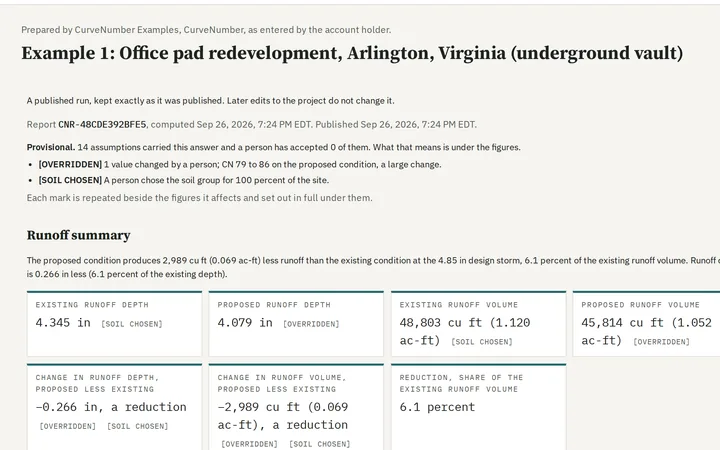
Example 1
Commercial redevelopment on urban fill
Ballston, Arlington County, Virginia
Unrated urban soil answered from a geotechnical report, a curve number override, and an underground vault.
-
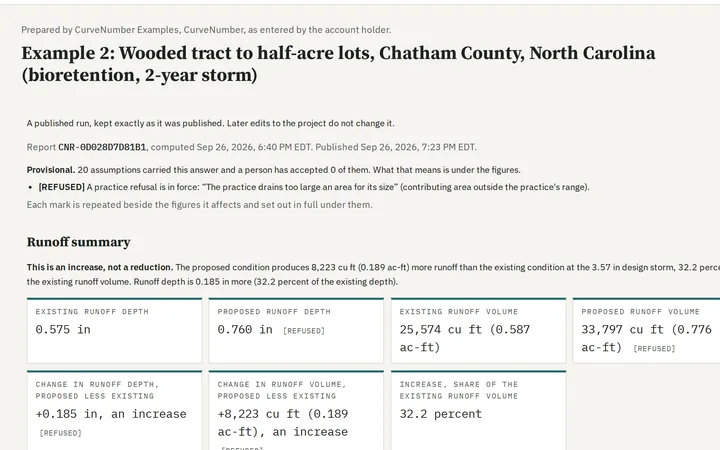
Example 2
Residential subdivision in the woods, with bioretention
Chatham County, North Carolina
Woods to half-acre lots, the time of concentration estimate, and a bioretention area the sizing check will not pass.
-
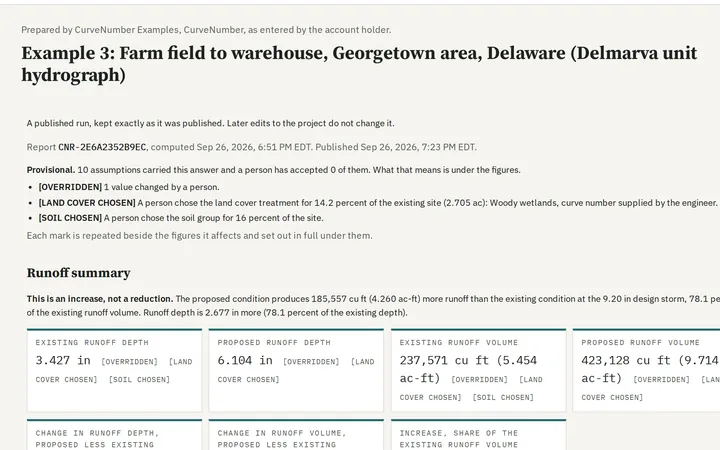
Example 3
Special rainfall and unit hydrograph cases
Georgetown, Delaware, and Hillsboro, Oregon
The Delmarva unit hydrograph against the standard one, wetlands, dual soil groups, NOAA Atlas 2 and the Type IA storm.
-
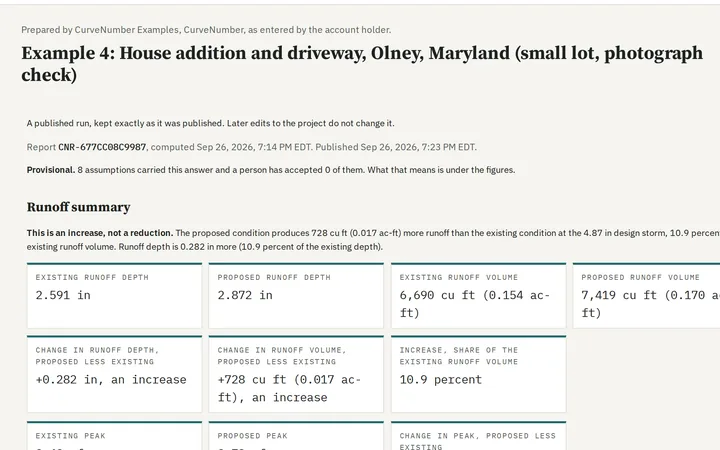
Example 4
A small lot, the aerial photograph check and a quick check
Olney, Montgomery County, Maryland
A lot too small for the land cover map, surfaces read off an aerial photograph, and the small area rule.
Before the examples
Getting started: projects, sites and the five steps
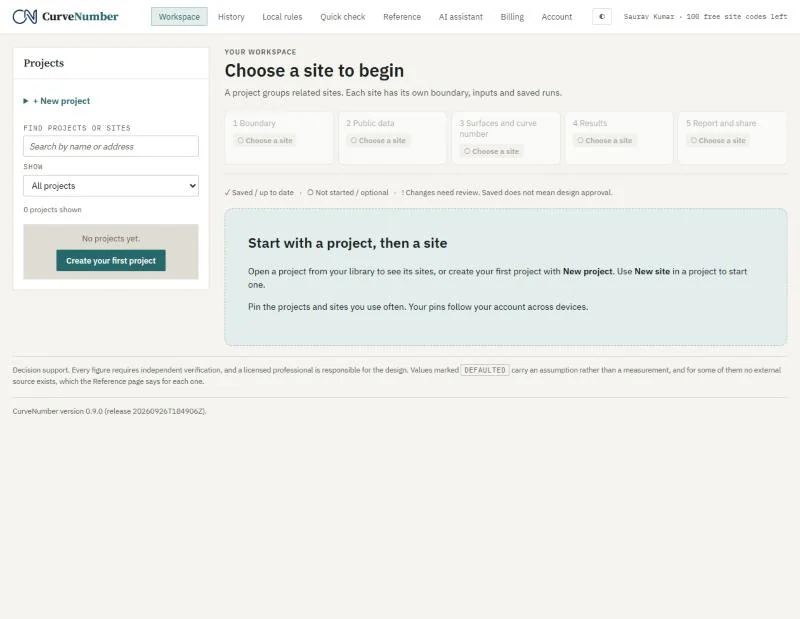
Every piece of work in CurveNumber lives in a project (a client job) and its sites (each drainage area you analyze). A site moves through five steps, shown across the top of the screen.
- BoundaryDraw the site on the map, or paste or import it.
- Public dataCurveNumber reads the soil survey, land cover, elevation and NOAA rainfall for your boundary.
- Surfaces and curve numberThe existing and proposed areas, their soil groups and curve numbers; then Compute.
- ResultsRunoff depth, volume and peak, before and after, and what any practice does.
- Report and shareA printable report for the reviewer, and a fixed published link.
Each step shows its state: saved, needs review, or not started. Nothing is charged until the first run that gives a result.
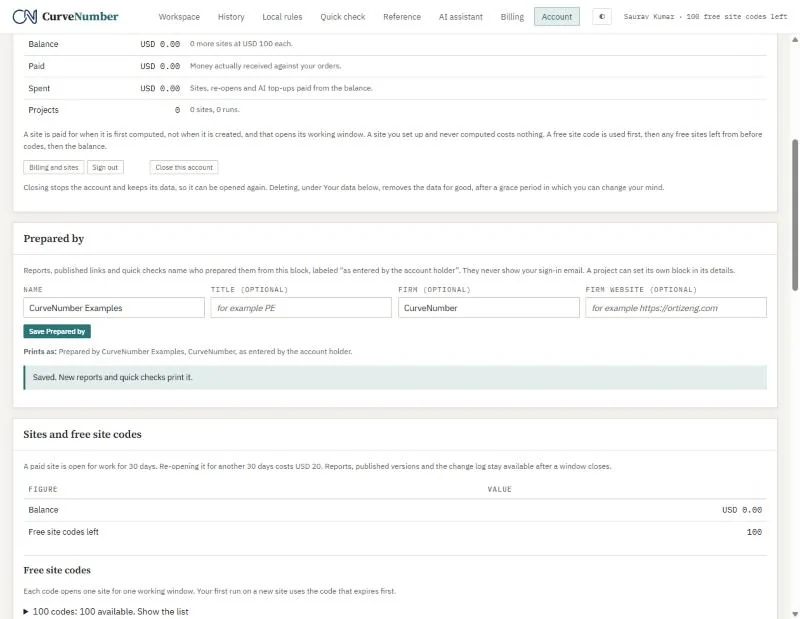
Prepared by
Before your first report, fill in the Prepared by block on the Account page: your name, title, firm and website. Every report and published link prints it, labeled “as entered by the account holder”. Your sign-in email never appears on a report.